> ## Documentation Index
> Fetch the complete documentation index at: https://docs.flowscale.ai/llms.txt
> Use this file to discover all available pages before exploring further.
# Models
> Complete guide to managing AI models in FlowScale: from browsing public models to uploading custom ones for your ComfyUI workflows
## What are Models in FlowScale?
Models in FlowScale AI are the powerful AI engines that drive your generative workflows. Just like in a local ComfyUI setup, these models need to be properly organized and accessible for your workflows to function. FlowScale simplifies this process by providing both a curated collection of public models and the ability to manage your own private model library.
 For a deeper understanding of how models work in ComfyUI, refer to the [official ComfyUI documentation on models](https://docs.comfy.org/development/core-concepts/models).
## Model Storage and Organization
### Dedicated Model Storage
FlowScale provides each organization with a **dedicated volume** for model storage with:
* **Unlimited storage capacity** - No restrictions on model library size
* **Organization-level access** - All team members can access shared models
* **Persistent storage** - Models remain available across all projects and sessions
### ComfyUI-Compatible Folder Structure
FlowScale maintains the exact same folder structure as local ComfyUI installations, ensuring seamless compatibility:
```
Models/
├── checkpoints/ # Stable Diffusion checkpoints
├── vae/ # VAE models
├── loras/ # LoRA models
├── controlnet/ # ControlNet models
├── clip/ # CLIP models
├── unet/ # U-Net models
├── upscale_models/ # Super-resolution models
└── embeddings/ # Text embeddings
```
This structure ensures that models are automatically recognized by ComfyUI workflows without any additional configuration.
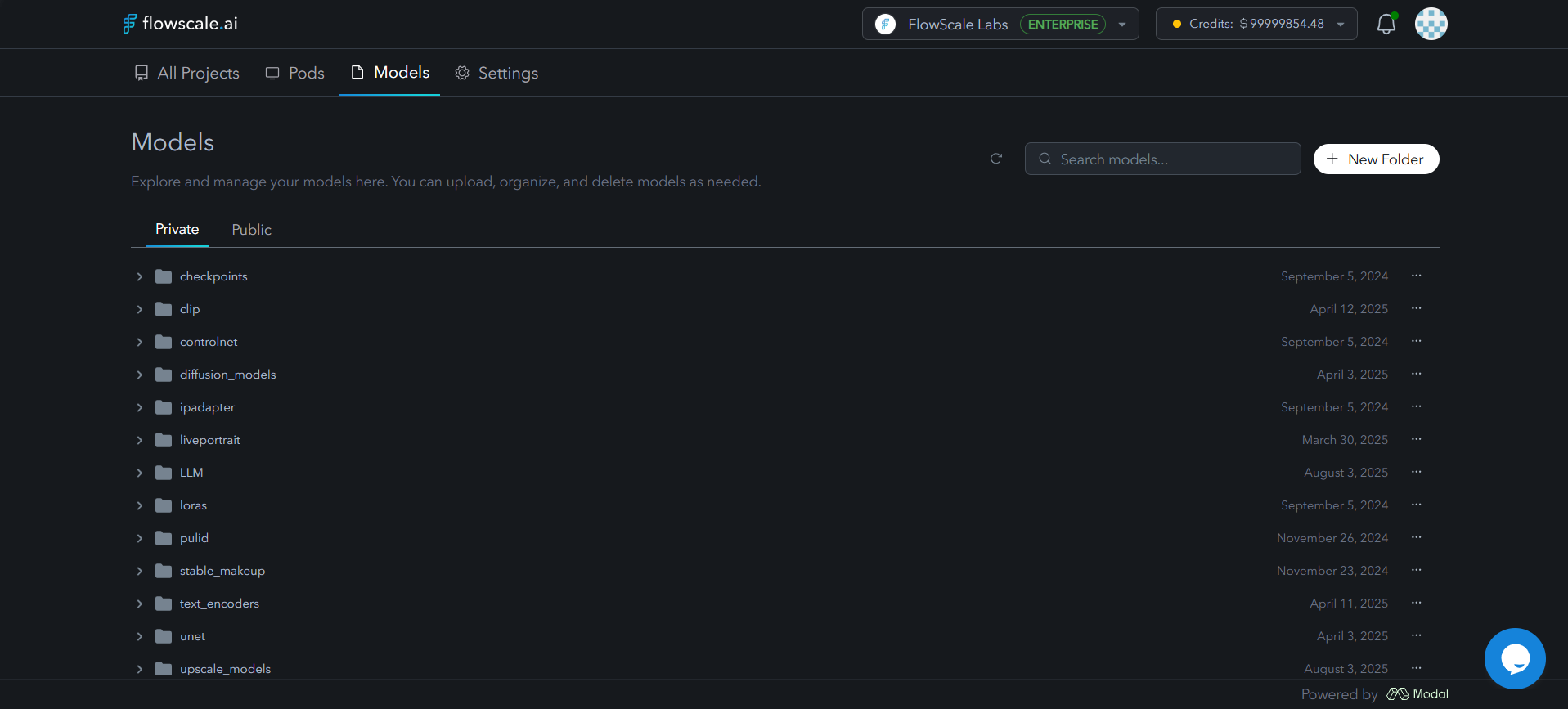
## Accessing the Models Interface
You can access the same models interface from two convenient locations in FlowScale:
### 1. Global Models Tab
* Located next to the **Pods** tab in the main navigation
* Provides organization-wide model management
* Access all models available to your organization
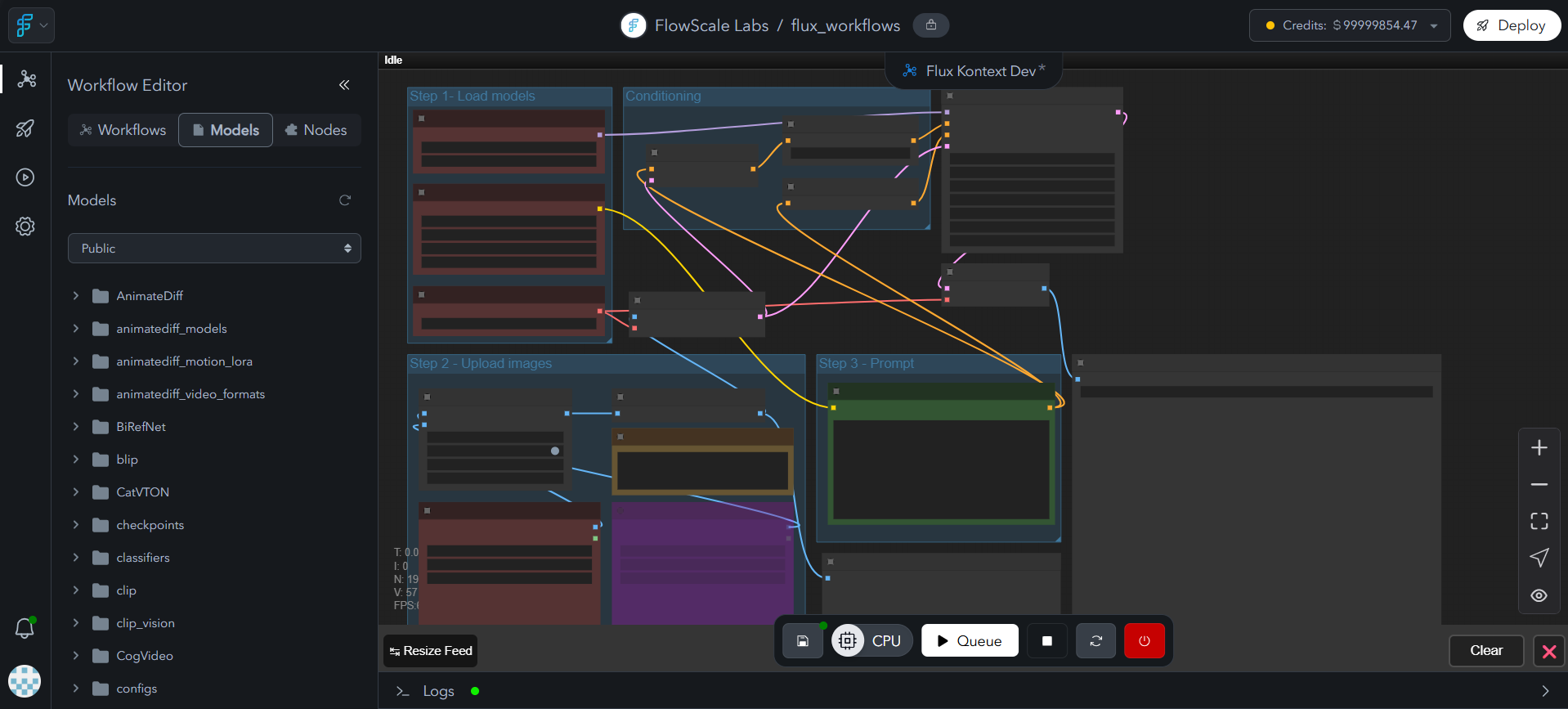
### 2. Project-Level Models Section
* Available within each individual project for convenience
* Shows the same organization-wide models as the global tab
* Convenient access while working within a project context
* No difference in functionality - just easier access during workflow development
For a deeper understanding of how models work in ComfyUI, refer to the [official ComfyUI documentation on models](https://docs.comfy.org/development/core-concepts/models).
## Model Storage and Organization
### Dedicated Model Storage
FlowScale provides each organization with a **dedicated volume** for model storage with:
* **Unlimited storage capacity** - No restrictions on model library size
* **Organization-level access** - All team members can access shared models
* **Persistent storage** - Models remain available across all projects and sessions
### ComfyUI-Compatible Folder Structure
FlowScale maintains the exact same folder structure as local ComfyUI installations, ensuring seamless compatibility:
```
Models/
├── checkpoints/ # Stable Diffusion checkpoints
├── vae/ # VAE models
├── loras/ # LoRA models
├── controlnet/ # ControlNet models
├── clip/ # CLIP models
├── unet/ # U-Net models
├── upscale_models/ # Super-resolution models
└── embeddings/ # Text embeddings
```
This structure ensures that models are automatically recognized by ComfyUI workflows without any additional configuration.
## Accessing the Models Interface
You can access the same models interface from two convenient locations in FlowScale:
### 1. Global Models Tab
* Located next to the **Pods** tab in the main navigation
* Provides organization-wide model management
* Access all models available to your organization
### 2. Project-Level Models Section
* Available within each individual project for convenience
* Shows the same organization-wide models as the global tab
* Convenient access while working within a project context
* No difference in functionality - just easier access during workflow development
 ## Public Models Library
### Curated Model Collection
FlowScale provides a comprehensive **Public Models** section featuring:
* **Latest AI models** - Cutting-edge and trending models
* **Production-ready models** - Tested and optimized for reliability
* **Popular model variants** - Different versions of Stable Diffusion, FLUX, and more
* **Specialized models** - ControlNet, LoRA, upscaling, and other task-specific models
### Categories Available
* **Image Generation**: Stable Diffusion (1.5, XL, 3.0), FLUX, Midjourney-style models
* **Style Transfer**: LoRA models for specific art styles and concepts
* **Image Control**: ControlNet models for pose, depth, edge guidance
* **Enhancement**: Upscaling and restoration models
* **Text Processing**: CLIP and embedding models
* **Video Generation**: AnimateDiff models for image-to-video, text-to-video generation, motion transfer, and temporal consistency
The public library is continuously updated by the FlowScale team to include the latest and most effective models in the AI community.
## Managing Private Models
### When to Use Private Models
Use the **Private Models** section when:
* The model you need isn't available in the public library
* You have custom-trained or fine-tuned models
* You need proprietary models for your organization
* You want to use specific model versions not in the public collection
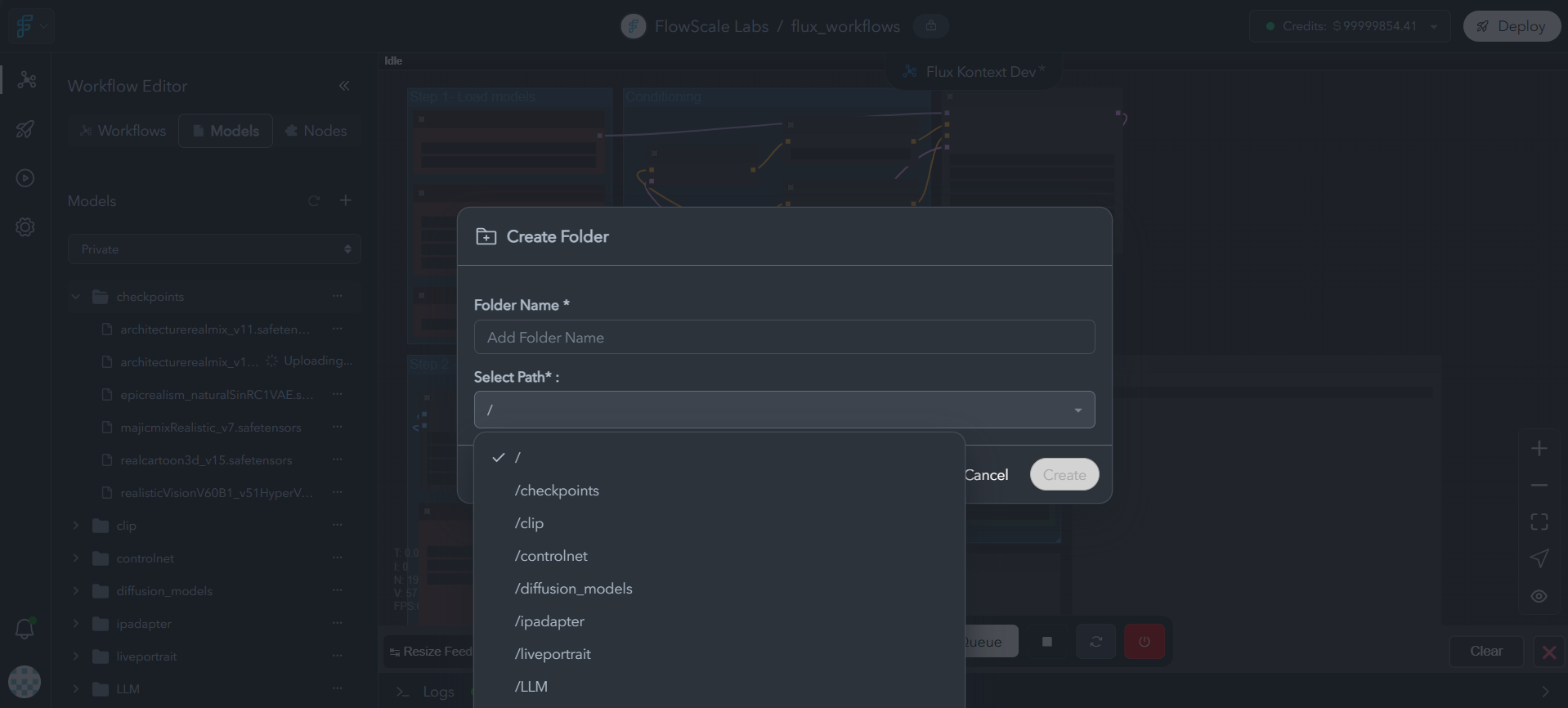
### Creating Folder Structure
Before uploading a model, ensure the correct folder exists:
1. **Check existing folders** - See if the appropriate category folder exists
2. **Create new folder** - If needed, create the folder matching ComfyUI conventions
3. **Follow naming conventions** - Use standard ComfyUI folder names for compatibility
## Public Models Library
### Curated Model Collection
FlowScale provides a comprehensive **Public Models** section featuring:
* **Latest AI models** - Cutting-edge and trending models
* **Production-ready models** - Tested and optimized for reliability
* **Popular model variants** - Different versions of Stable Diffusion, FLUX, and more
* **Specialized models** - ControlNet, LoRA, upscaling, and other task-specific models
### Categories Available
* **Image Generation**: Stable Diffusion (1.5, XL, 3.0), FLUX, Midjourney-style models
* **Style Transfer**: LoRA models for specific art styles and concepts
* **Image Control**: ControlNet models for pose, depth, edge guidance
* **Enhancement**: Upscaling and restoration models
* **Text Processing**: CLIP and embedding models
* **Video Generation**: AnimateDiff models for image-to-video, text-to-video generation, motion transfer, and temporal consistency
The public library is continuously updated by the FlowScale team to include the latest and most effective models in the AI community.
## Managing Private Models
### When to Use Private Models
Use the **Private Models** section when:
* The model you need isn't available in the public library
* You have custom-trained or fine-tuned models
* You need proprietary models for your organization
* You want to use specific model versions not in the public collection
### Creating Folder Structure
Before uploading a model, ensure the correct folder exists:
1. **Check existing folders** - See if the appropriate category folder exists
2. **Create new folder** - If needed, create the folder matching ComfyUI conventions
3. **Follow naming conventions** - Use standard ComfyUI folder names for compatibility
 ## Uploading Models to FlowScale
### Step-by-Step Upload Process
#### 1. Navigate to the Upload Interface
* Go to the **Private Models** section
* Find or create the appropriate folder (e.g., `checkpoints`, `loras`)
* Click the **three-dot menu** on the folder
* Select **Upload** from the dropdown
## Uploading Models to FlowScale
### Step-by-Step Upload Process
#### 1. Navigate to the Upload Interface
* Go to the **Private Models** section
* Find or create the appropriate folder (e.g., `checkpoints`, `loras`)
* Click the **three-dot menu** on the folder
* Select **Upload** from the dropdown
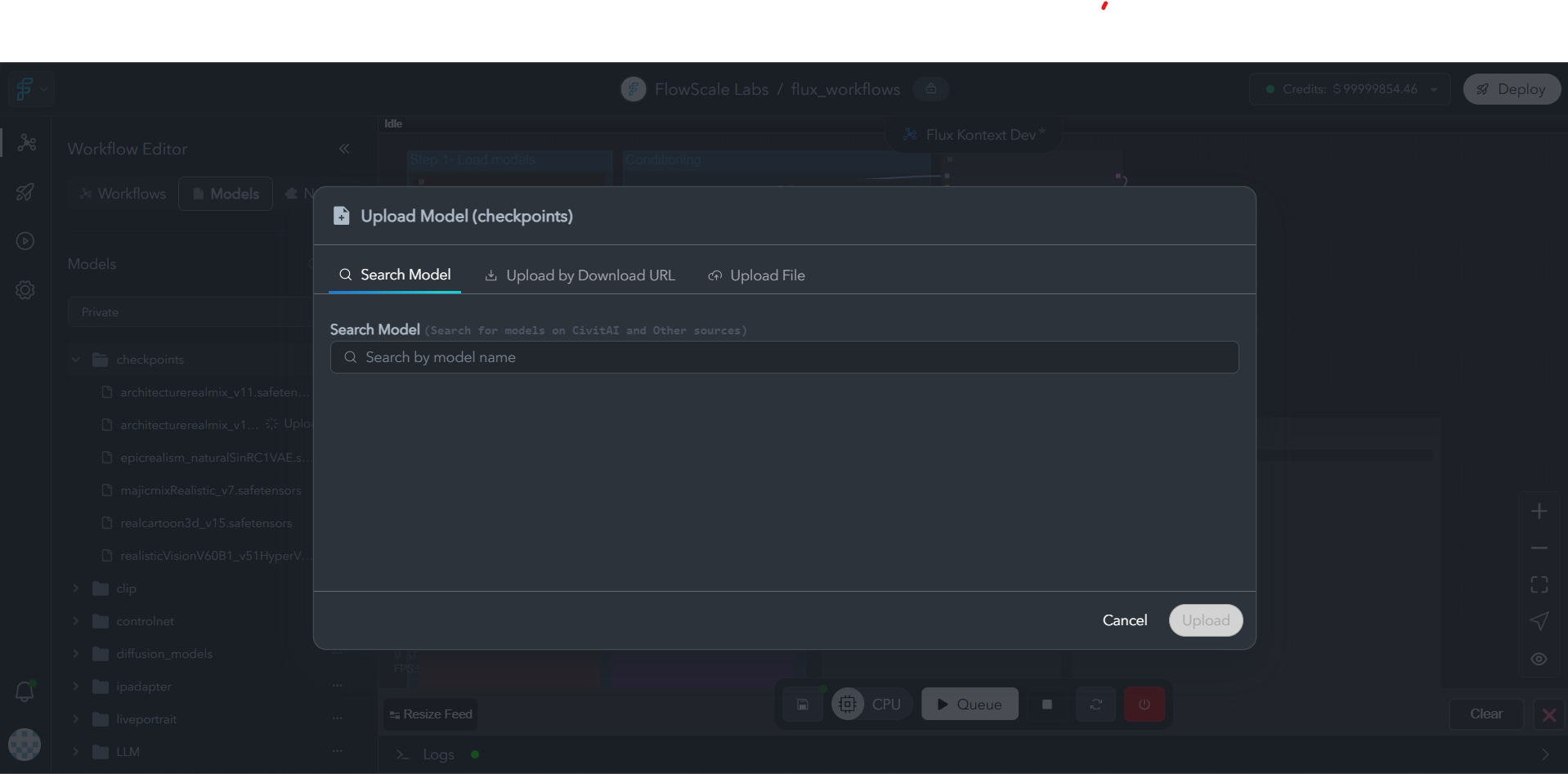 #### 2. Choose Your Upload Method
The upload dialog provides three options:
**Option A: Direct URL Download**
* Paste the direct download URL of the model
* FlowScale will download the model directly to your storage
* Fastest method for publicly available models
**Option B: Local File Upload**
* Upload model files from your computer
* Drag and drop or browse to select files
* Best for custom models or files you already have locally
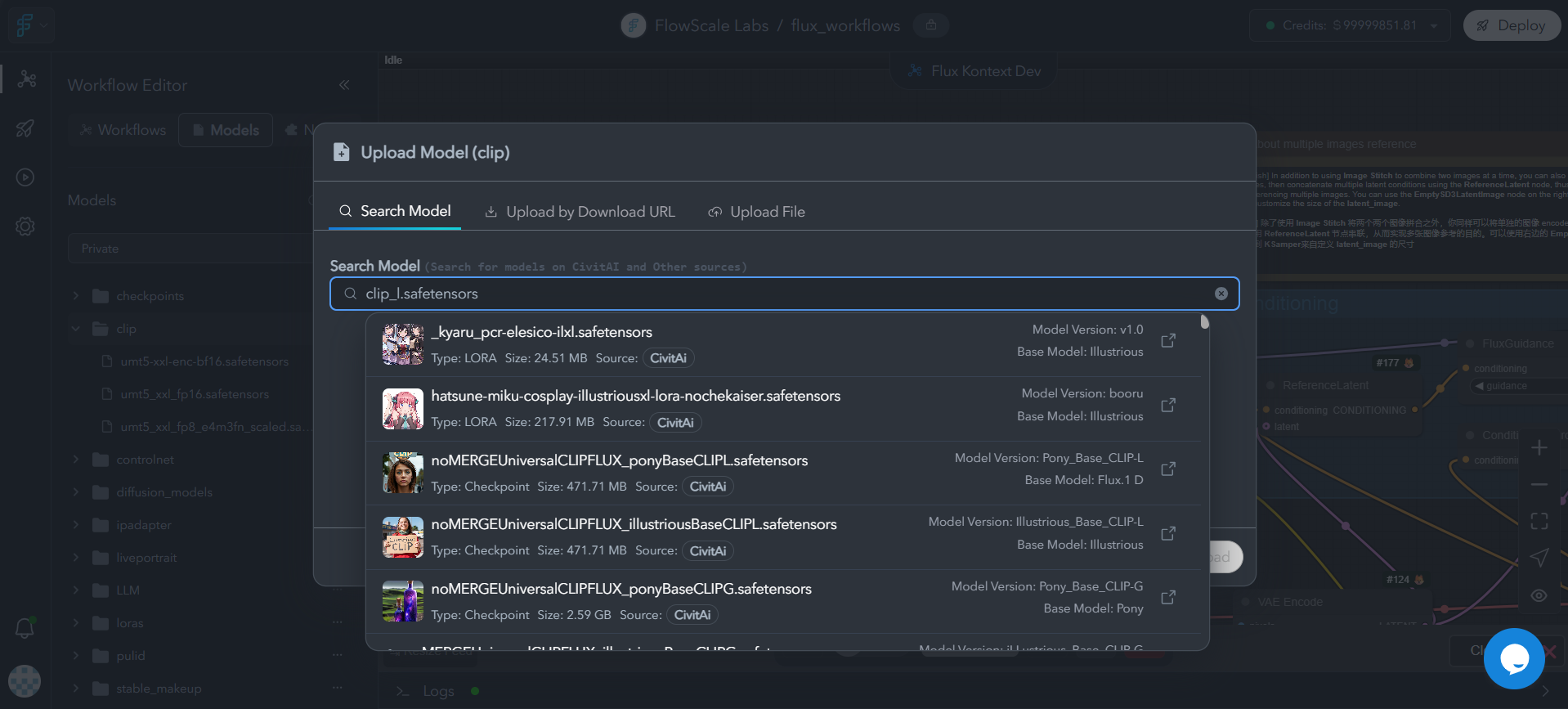
**Option C: Search and Import**
* Search by model name to find models from:
* **Civitai.com** - Community-created models and LoRAs
* **Hugging Face** - Research and open-source models
* Browse search results and select the model you want
#### 2. Choose Your Upload Method
The upload dialog provides three options:
**Option A: Direct URL Download**
* Paste the direct download URL of the model
* FlowScale will download the model directly to your storage
* Fastest method for publicly available models
**Option B: Local File Upload**
* Upload model files from your computer
* Drag and drop or browse to select files
* Best for custom models or files you already have locally
**Option C: Search and Import**
* Search by model name to find models from:
* **Civitai.com** - Community-created models and LoRAs
* **Hugging Face** - Research and open-source models
* Browse search results and select the model you want
 #### 3. Configure API Access (if needed)
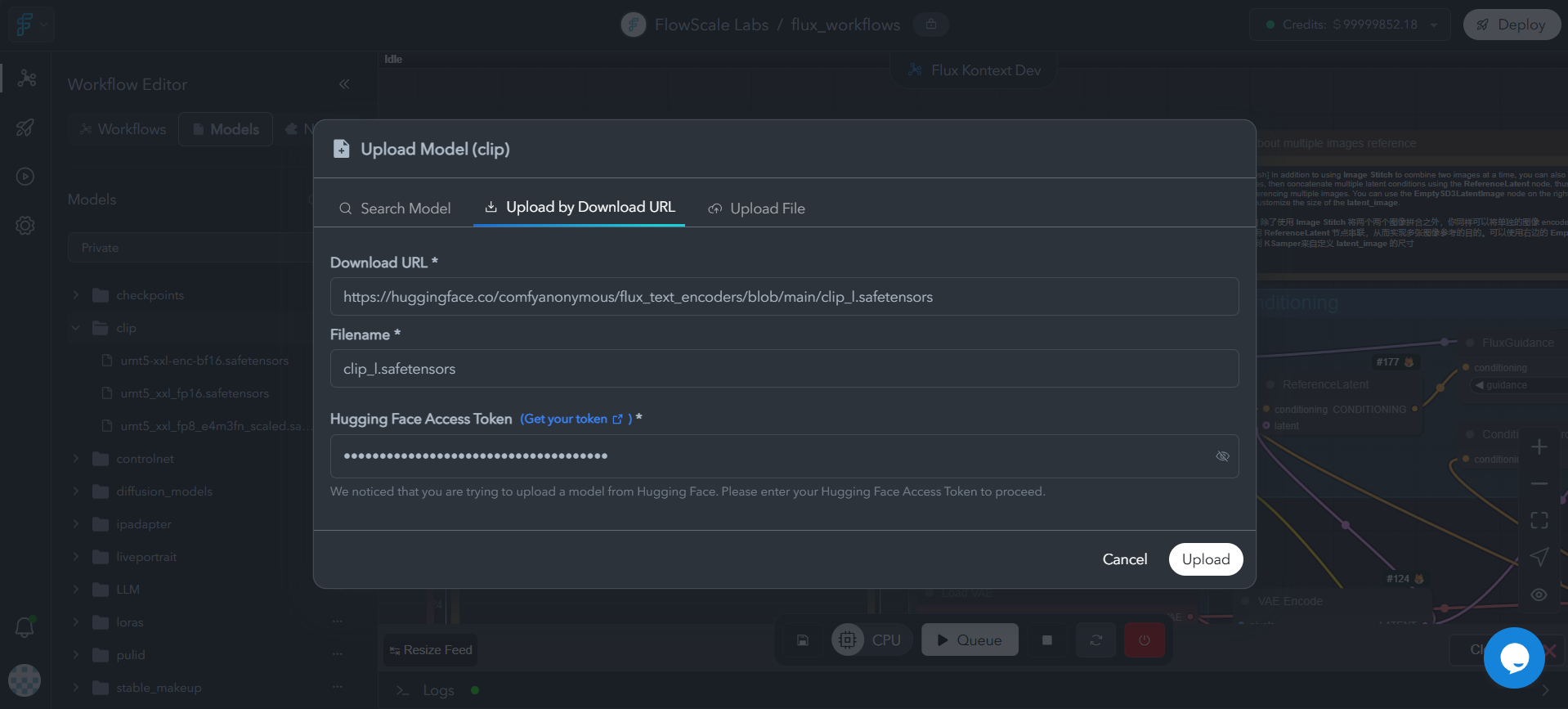
For models from external platforms, you'll need API credentials:
**For Civitai Models:**
* Get your API key from [Civitai API Settings](https://civitai.com/user/account)
* Paste the API key in the upload dialog
* Required for downloading from Civitai's repository
**For Hugging Face Models:**
* Get your access token from [Hugging Face Token Settings](https://huggingface.co/settings/tokens)
* Paste the token in the upload dialog
* Required for accessing Hugging Face models
#### 3. Configure API Access (if needed)
For models from external platforms, you'll need API credentials:
**For Civitai Models:**
* Get your API key from [Civitai API Settings](https://civitai.com/user/account)
* Paste the API key in the upload dialog
* Required for downloading from Civitai's repository
**For Hugging Face Models:**
* Get your access token from [Hugging Face Token Settings](https://huggingface.co/settings/tokens)
* Paste the token in the upload dialog
* Required for accessing Hugging Face models
 #### 4. Start the Upload
* Click **Upload** to begin the process
* You'll see a progress indicator
* You can leave the page - the upload continues in the background
### Upload Monitoring
**Background Processing:**
* Models upload and process in the background
* No need to stay on the models page during upload
* Continue working on other tasks while models download
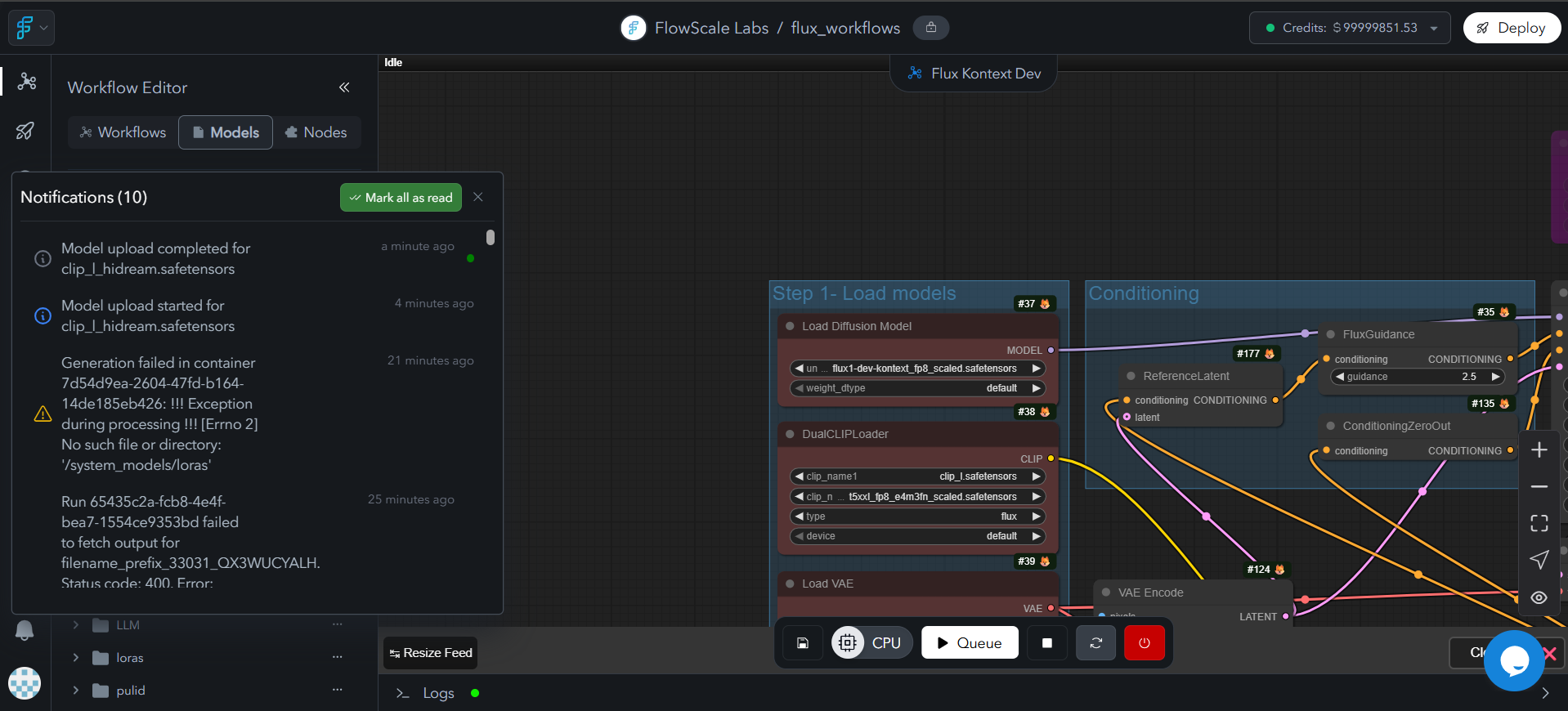
**Completion Notifications:**
* Receive notification when model upload completes successfully
* Get alerts if upload fails with error details
* **Check status anytime** by clicking the **bell icon** in the top navigation to view notifications
* All model download progress and completion status appears in the notifications panel
#### 4. Start the Upload
* Click **Upload** to begin the process
* You'll see a progress indicator
* You can leave the page - the upload continues in the background
### Upload Monitoring
**Background Processing:**
* Models upload and process in the background
* No need to stay on the models page during upload
* Continue working on other tasks while models download
**Completion Notifications:**
* Receive notification when model upload completes successfully
* Get alerts if upload fails with error details
* **Check status anytime** by clicking the **bell icon** in the top navigation to view notifications
* All model download progress and completion status appears in the notifications panel
 ## Using Uploaded Models in ComfyUI
### Accessing Models in Workflows
After uploading models to FlowScale:
1. **Open your ComfyUI workspace** in any project
2. **Add model nodes** to your workflow (Load Checkpoint, Load LoRA, etc.)
3. **Click the model dropdown** in the node
4. **Select your uploaded model** from the list
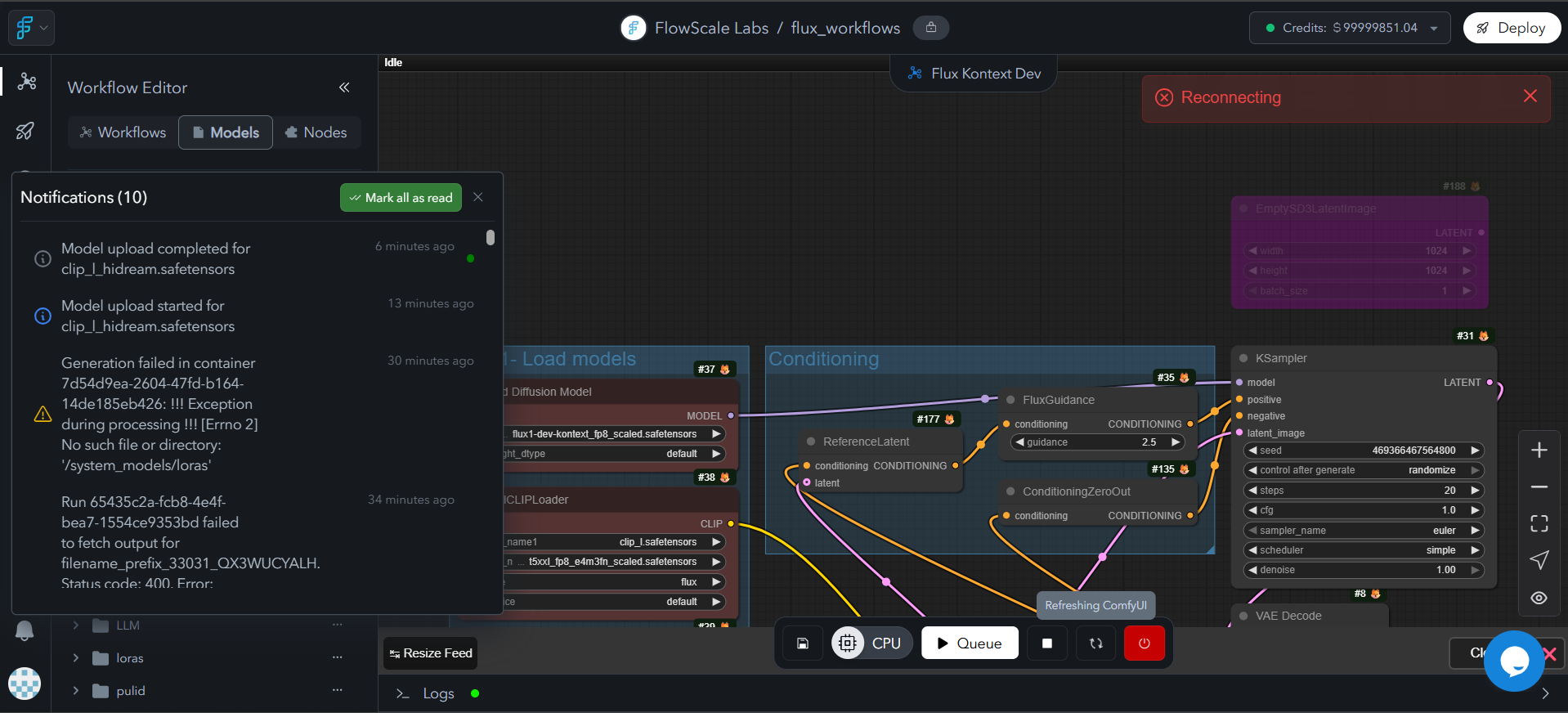
### Refreshing Model List
If newly uploaded models don't appear in ComfyUI:
#### Method 1: Refresh Button
* Look for the **Refresh** button in the **Actions Bar** at the bottom of ComfyUI
* Click to reload the model list
* This updates ComfyUI's model cache with newly uploaded models
## Using Uploaded Models in ComfyUI
### Accessing Models in Workflows
After uploading models to FlowScale:
1. **Open your ComfyUI workspace** in any project
2. **Add model nodes** to your workflow (Load Checkpoint, Load LoRA, etc.)
3. **Click the model dropdown** in the node
4. **Select your uploaded model** from the list
### Refreshing Model List
If newly uploaded models don't appear in ComfyUI:
#### Method 1: Refresh Button
* Look for the **Refresh** button in the **Actions Bar** at the bottom of ComfyUI
* Click to reload the model list
* This updates ComfyUI's model cache with newly uploaded models
 #### Method 2: Restart ComfyUI
If refresh doesn't work:
1. **Stop ComfyUI** using the stop button
2. **Start ComfyUI** again
3. Models should now be visible in dropdowns
This fully reloads ComfyUI and ensures all models are properly detected.
## Troubleshooting Model Issues
### Model Not Visible in ComfyUI
**Problem:** Uploaded model doesn't appear in node dropdowns in ComfyUI
**Solutions:**
1. **Check folder placement** - Ensure model is in the correct ComfyUI folder
2. **Verify folder spelling** - Check that folder names match ComfyUI's exact spelling requirements (e.g., `checkpoints/`, `loras/`, `controlnet/`)
3. **Refresh ComfyUI** - Use the refresh button in the actions bar
4. **Restart ComfyUI** - Stop and start ComfyUI to force reload
5. **Verify upload completion** - Check that upload finished successfully
6. **Check file format** - Ensure model file has correct extension (.safetensors, .ckpt, etc.)
### Upload Failures
**Problem:** Model upload fails or gets stuck
**Solutions:**
1. **Check internet connection** - Ensure stable connection for large downloads
2. **Verify API keys** - Ensure Civitai/Hugging Face credentials are correct
3. **Try different upload method** - Switch between URL, local upload, or search
### Getting Help
If you continue experiencing issues:
1. **Check error messages** - Note any specific error codes or messages
2. **Try basic troubleshooting** - Refresh, restart, re-upload
3. **Contact FlowScale support** - Reach out via:
* **Email**: [hello@flowscale.ai](mailto:hello@flowscale.ai)
* **Slack Community**: [Join here](https://join.slack.com/t/flowscalecommunity/shared_invite/zt-320joycdu-K67c8VNMR7eTmHUZ3asuRg) and chat in the general channel - the FlowScale team is very active there
4. **Provide details** - Include model name, upload method, and error messages
The FlowScale team can assist with model installation and troubleshooting to ensure your models work properly in your workflows.
## Getting Started
Ready to start working with models? Check out our [Import & Create Workflows](/getting-started/import-create-workflows) guide to begin building your first AI-powered workflow using FlowScale's model management system.
### Related Documentation
* [ComfyUI Workspace](/getting-started/glossary/comfyui-workspace) - Learn how to build workflows with models
* [Projects](/getting-started/glossary/projects) - Understanding project organization
* [Pods](/getting-started/glossary/pods) - Computing resources that run your models
#### Method 2: Restart ComfyUI
If refresh doesn't work:
1. **Stop ComfyUI** using the stop button
2. **Start ComfyUI** again
3. Models should now be visible in dropdowns
This fully reloads ComfyUI and ensures all models are properly detected.
## Troubleshooting Model Issues
### Model Not Visible in ComfyUI
**Problem:** Uploaded model doesn't appear in node dropdowns in ComfyUI
**Solutions:**
1. **Check folder placement** - Ensure model is in the correct ComfyUI folder
2. **Verify folder spelling** - Check that folder names match ComfyUI's exact spelling requirements (e.g., `checkpoints/`, `loras/`, `controlnet/`)
3. **Refresh ComfyUI** - Use the refresh button in the actions bar
4. **Restart ComfyUI** - Stop and start ComfyUI to force reload
5. **Verify upload completion** - Check that upload finished successfully
6. **Check file format** - Ensure model file has correct extension (.safetensors, .ckpt, etc.)
### Upload Failures
**Problem:** Model upload fails or gets stuck
**Solutions:**
1. **Check internet connection** - Ensure stable connection for large downloads
2. **Verify API keys** - Ensure Civitai/Hugging Face credentials are correct
3. **Try different upload method** - Switch between URL, local upload, or search
### Getting Help
If you continue experiencing issues:
1. **Check error messages** - Note any specific error codes or messages
2. **Try basic troubleshooting** - Refresh, restart, re-upload
3. **Contact FlowScale support** - Reach out via:
* **Email**: [hello@flowscale.ai](mailto:hello@flowscale.ai)
* **Slack Community**: [Join here](https://join.slack.com/t/flowscalecommunity/shared_invite/zt-320joycdu-K67c8VNMR7eTmHUZ3asuRg) and chat in the general channel - the FlowScale team is very active there
4. **Provide details** - Include model name, upload method, and error messages
The FlowScale team can assist with model installation and troubleshooting to ensure your models work properly in your workflows.
## Getting Started
Ready to start working with models? Check out our [Import & Create Workflows](/getting-started/import-create-workflows) guide to begin building your first AI-powered workflow using FlowScale's model management system.
### Related Documentation
* [ComfyUI Workspace](/getting-started/glossary/comfyui-workspace) - Learn how to build workflows with models
* [Projects](/getting-started/glossary/projects) - Understanding project organization
* [Pods](/getting-started/glossary/pods) - Computing resources that run your models