> ## Documentation Index
> Fetch the complete documentation index at: https://docs.flowscale.ai/llms.txt
> Use this file to discover all available pages before exploring further.
# Projects
> Understanding projects in FlowScale - your workspace for building and deploying AI workflows
## What is a Project?
A **project** in FlowScale is a workspace that contains your workflows and all the configurations needed to run them. You must create a project before you can start building or importing any workflows.
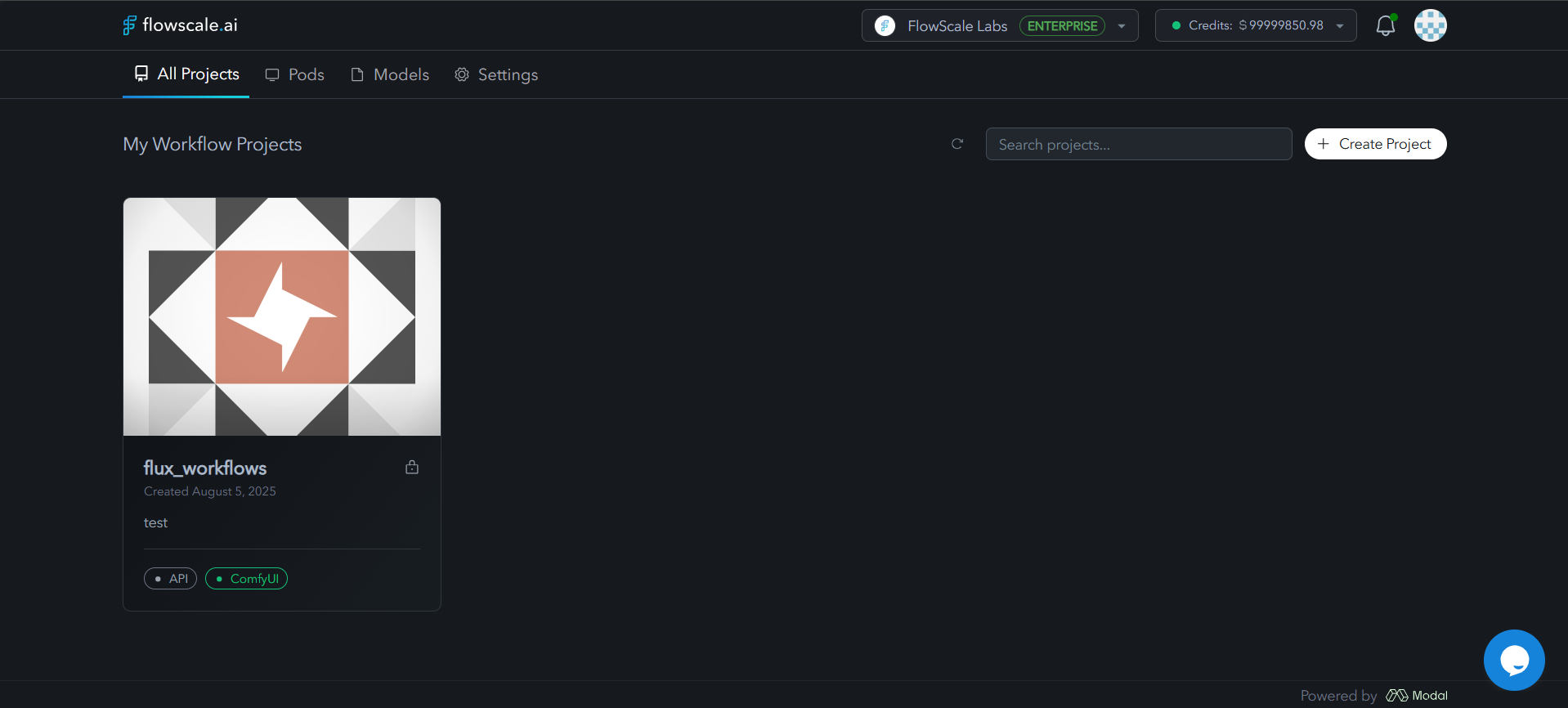 Once you've built your workflows, you can deploy them from your project as APIs or Playground UIs on a Pod.
## Project Components
Every FlowScale project includes:
Build and edit your AI workflows
Deploy workflows as live APIs
View execution history from APIs and Playground
Configure environment, API keys, and collaborators
## ComfyUI Workspace
The ComfyUI Workspace is where you build and modify your AI workflows. It provides a visual node-based interface for creating complex AI pipelines.
Once you've built your workflows, you can deploy them from your project as APIs or Playground UIs on a Pod.
## Project Components
Every FlowScale project includes:
Build and edit your AI workflows
Deploy workflows as live APIs
View execution history from APIs and Playground
Configure environment, API keys, and collaborators
## ComfyUI Workspace
The ComfyUI Workspace is where you build and modify your AI workflows. It provides a visual node-based interface for creating complex AI pipelines.
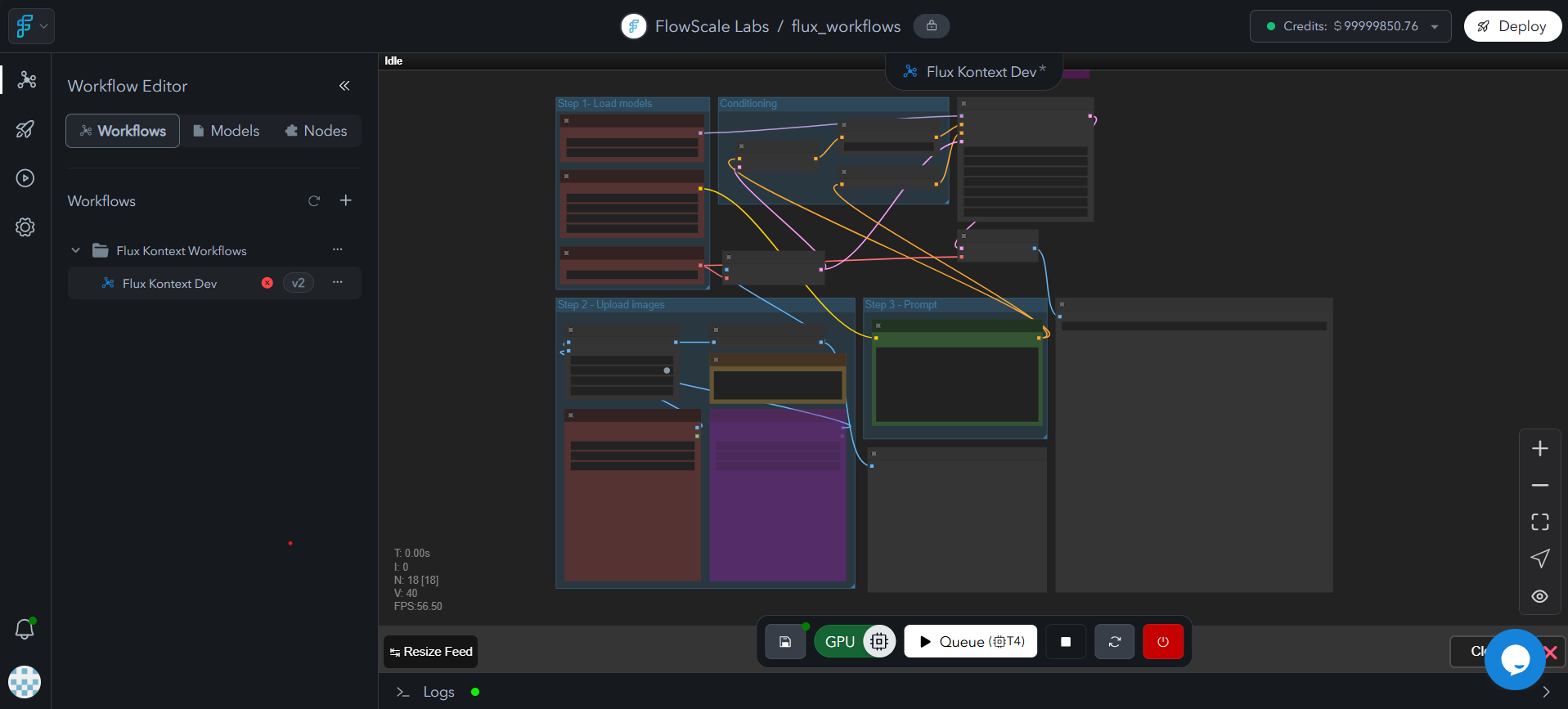 Learn more about ComfyUI in the [ComfyUI documentation](/getting-started/glossary/comfyui).
## Deployments
Once your workflows are ready, you can deploy them as:
* **APIs**: RESTful endpoints for programmatic access
* **Playground UIs**: Interactive web interfaces for testing
Learn more about ComfyUI in the [ComfyUI documentation](/getting-started/glossary/comfyui).
## Deployments
Once your workflows are ready, you can deploy them as:
* **APIs**: RESTful endpoints for programmatic access
* **Playground UIs**: Interactive web interfaces for testing
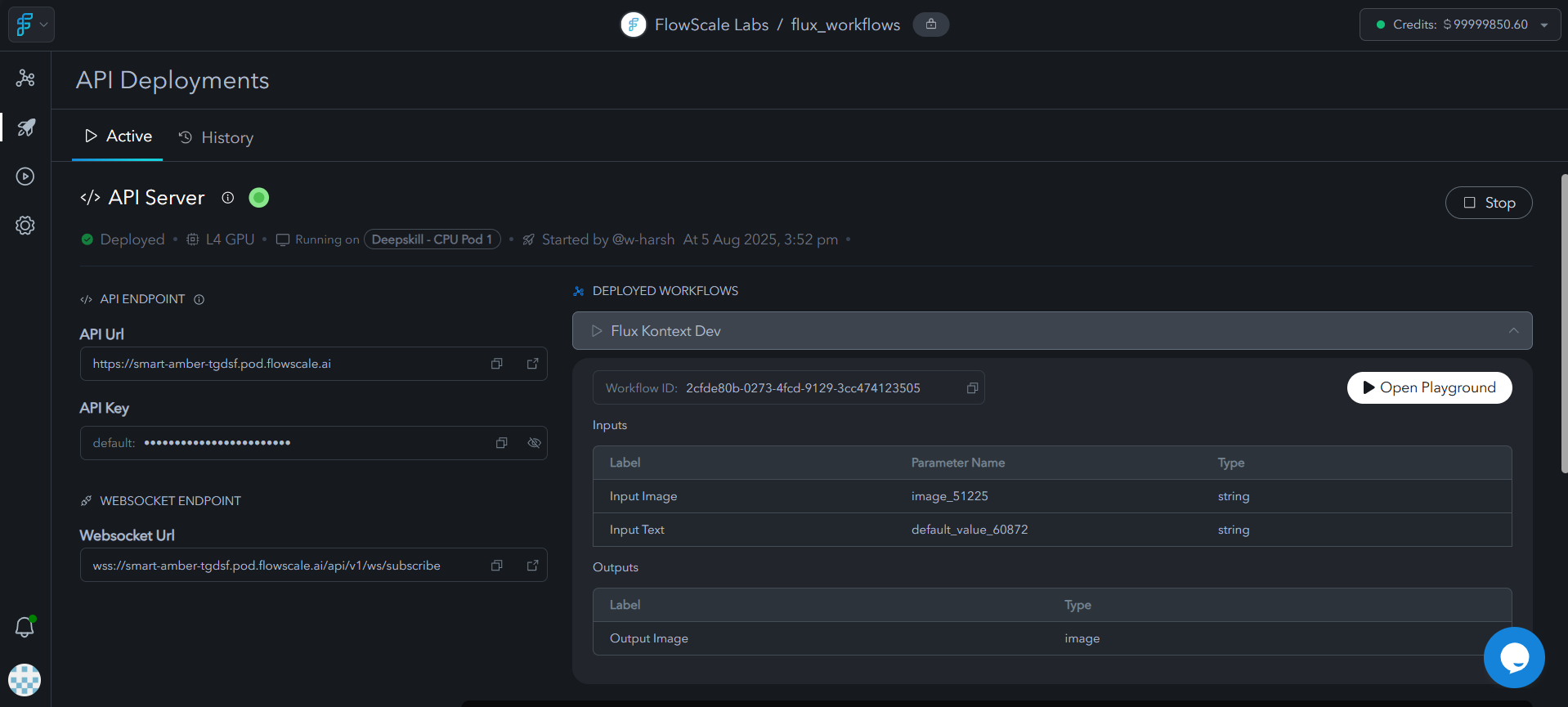 All deployed workflows run on Pods, which provide the computational resources needed for your AI workflows.
## Runs
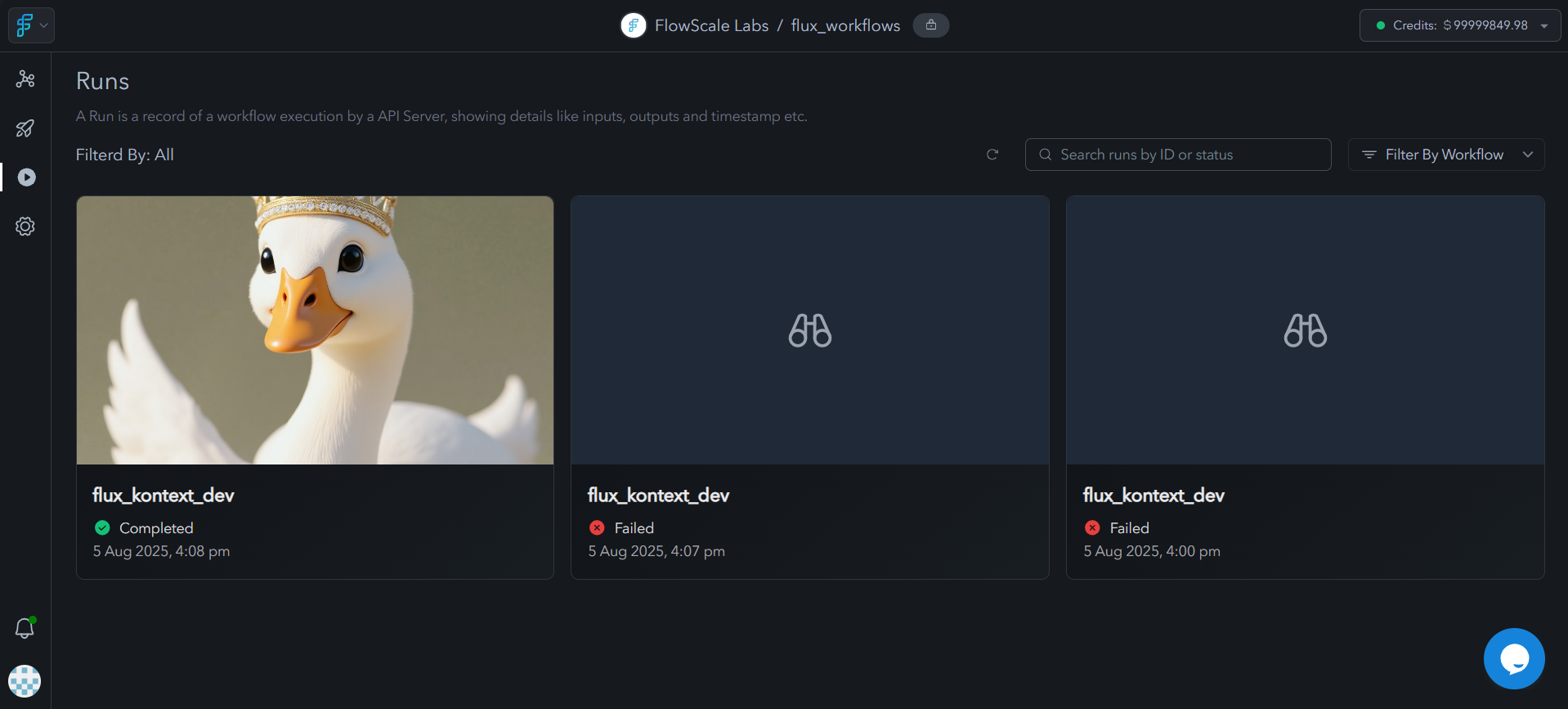
The Runs section shows the execution history of your workflows, including:
* Runs triggered through deployed APIs
* Runs executed in the Playground UI
* Input parameters and output results
* Execution timestamps and status
All deployed workflows run on Pods, which provide the computational resources needed for your AI workflows.
## Runs
The Runs section shows the execution history of your workflows, including:
* Runs triggered through deployed APIs
* Runs executed in the Playground UI
* Input parameters and output results
* Execution timestamps and status
 ## Project Settings
### API Keys
Once you deploy an API, you can manage API keys in the project settings. These keys are used to authenticate requests to your deployed workflows.
### Environment Variables
If your workflows or custom nodes require specific environment variables, you can configure them in the Environment Settings. This is useful for:
* API keys for external services
* Configuration parameters
* Custom node requirements
### Collaborators
You can add team members to your project for collaboration.
## Project Settings
### API Keys
Once you deploy an API, you can manage API keys in the project settings. These keys are used to authenticate requests to your deployed workflows.
### Environment Variables
If your workflows or custom nodes require specific environment variables, you can configure them in the Environment Settings. This is useful for:
* API keys for external services
* Configuration parameters
* Custom node requirements
### Collaborators
You can add team members to your project for collaboration.
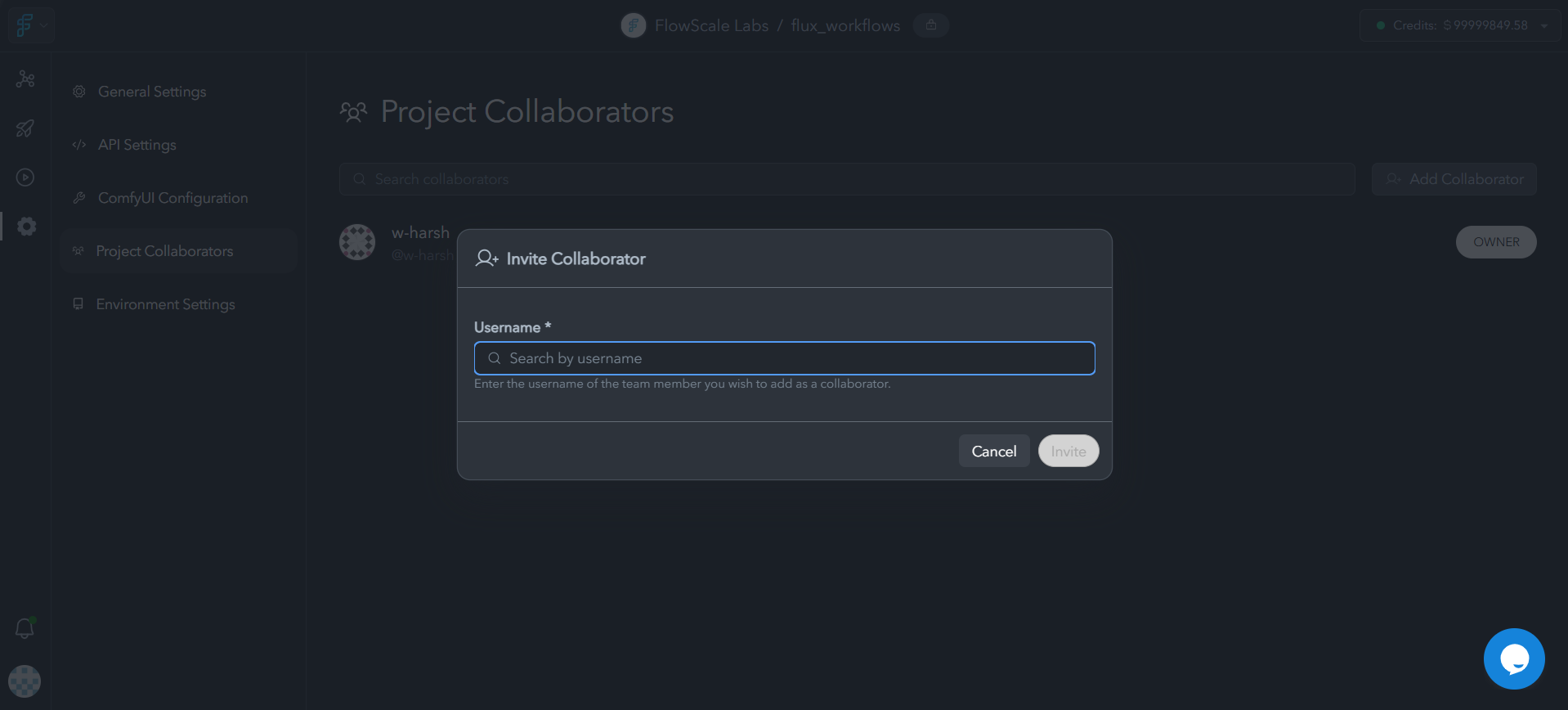 Before adding collaborators to a project, they must first be added to your organization.
## Getting Started
Start by creating a new project in your FlowScale workspace
Use the ComfyUI Workspace to create or import your AI workflows
Set up any required environment variables or configurations
Deploy your workflows as APIs or Playground UIs
Invite team members to work together on your project
## Next Steps
Set up a new project and import workflows
Deploy project workflows as APIs
Before adding collaborators to a project, they must first be added to your organization.
## Getting Started
Start by creating a new project in your FlowScale workspace
Use the ComfyUI Workspace to create or import your AI workflows
Set up any required environment variables or configurations
Deploy your workflows as APIs or Playground UIs
Invite team members to work together on your project
## Next Steps
Set up a new project and import workflows
Deploy project workflows as APIs